How to set up Google Alerts so they're useful
To create a Google Alert that is worth reading, write a specific query, check it in the live preview, then set Sources and How often to match the job. Most of the work is in the query. A bare word like mercury returns skin cream and planets. A quoted phrase returns the story you wanted.
We tested this on 2026-10-16 in a personal Google account, in desktop Chrome. We did not save any alert for the tests. Everything below comes from the preview that Google shows before you create an alert, so we say "preview" where the numbers come from it. For wider monitoring, see media monitoring on a small budget. This post does not cover emails that stopped arriving or the RSS feed. Those have their own posts, linked at the end.
Create an alert in four steps
- Open
google.com/alertsand type your query into the Create an alert about... box. - Read the Alert preview that appears under the box.
- Click Show options and set How often, Sources, Language, Region and How many. Leave them alone if the defaults suit you.
- Click Create Alert.
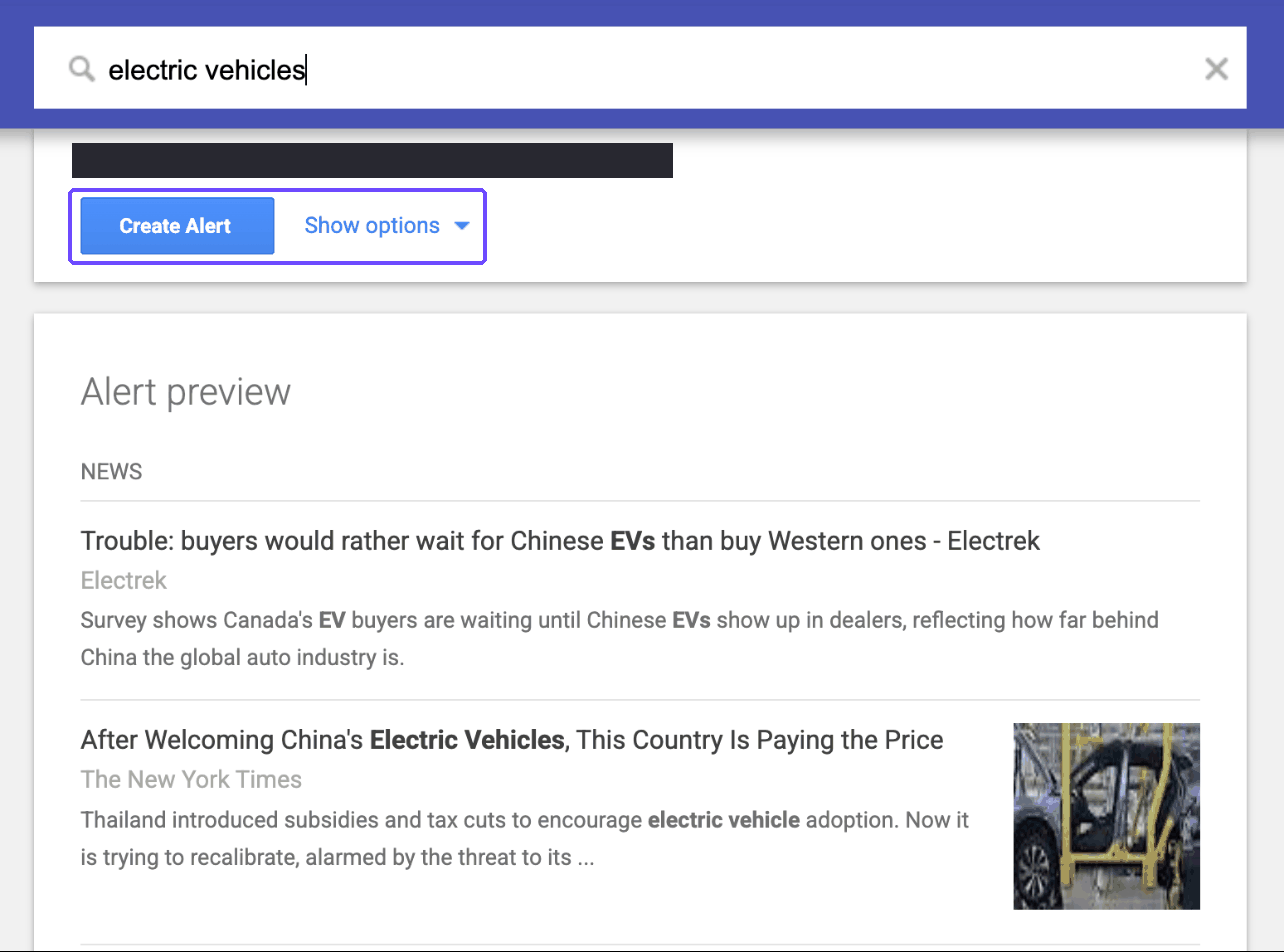
The create box on 2026-10-17. The line above the buttons names your account address, so we covered it.
The preview is a free dry run. It shows what an alert with these exact words and options would return right now, before you save anything. Use it for every change in this post. When we tried queries, each News preview held 10 results at most.
Google Alerts settings that change what you get
The defaults on our account were At most once a day, Automatic sources, English, Any Region and Only the best results. Our post on alerts that stopped arriving has the full table and a count of Only the best results against All results, so we do not repeat it. What follows is what we found beyond that.
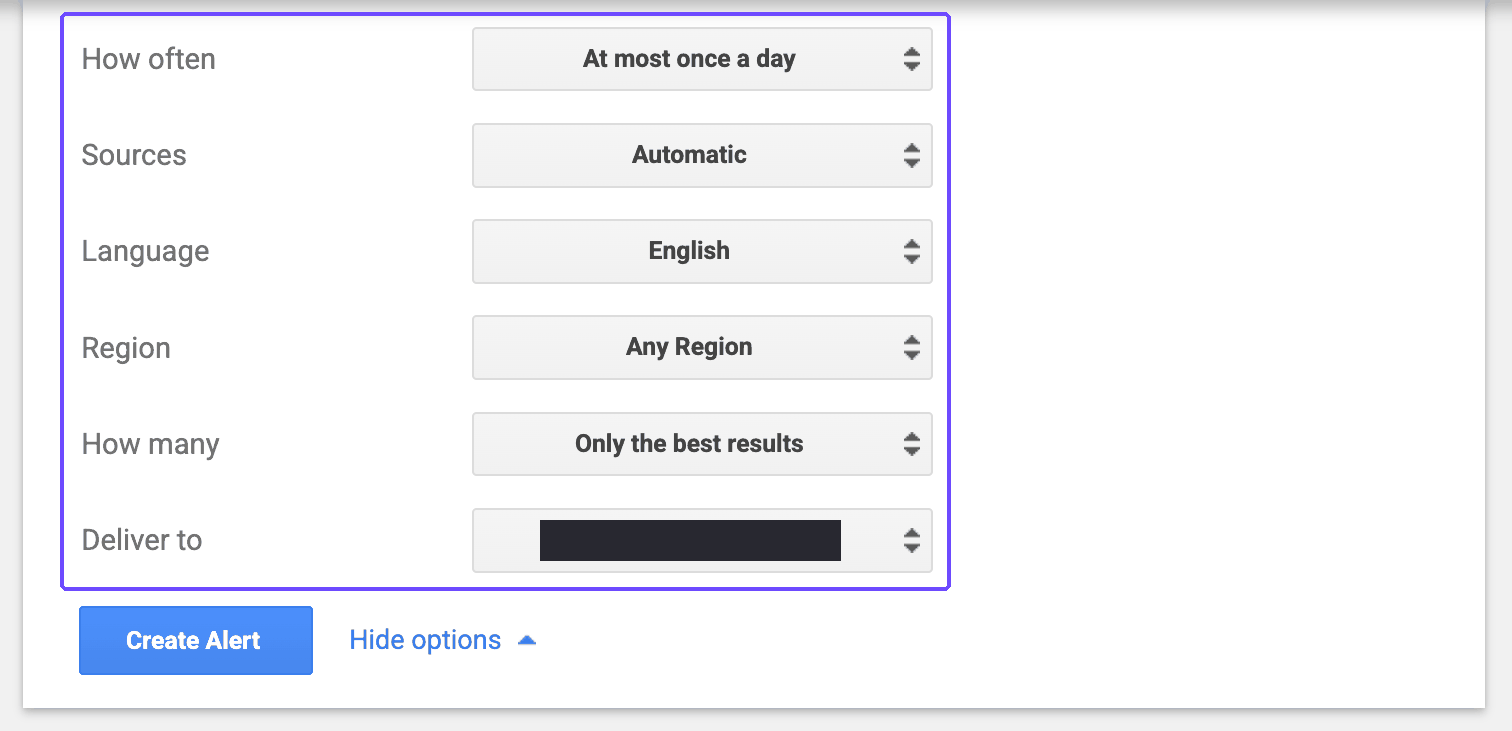
The Show options panel on 2026-10-17, with the defaults on our account. Deliver to shows your account address, so we covered it.
Sources and region
We typed electric vehicles and switched Sources in the preview.
- News gave 10 headlines from outlets such as The New York Times, USA Today and Electrek.
- Web showed this message instead: "There are no recent results for your search query. Below are existing results that match your search query." The 10 results were standing pages, such as a Department of Energy page, Wikipedia and the Toyota site. If you want an alert to tell you about new things, a Web-only alert may not be what you want. We did not wait to see whether a Web alert later sends anything.
- Setting Region to Australia changed every headline we saw to local coverage, from outlets like CarsGuide, Drive and Carsales. We did not test other regions.
How often
How often has three choices: As-it-happens, At most once a day and At most once a week. Our rule of thumb, which is judgment and not a measurement:
| Job | How often |
|---|---|
| A launch, a crisis, a name you must not miss | As-it-happens |
| A topic you skim each morning | At most once a day |
| Slow research | At most once a week |
With Australia selected, switching the preview from daily to weekly changed it. Only 4 of the 10 headlines were the same. We did not run it twice on the same setting to see how much the preview drifts by itself, so read that as "it can differ", not as a rule. We also did not measure when emails arrive.
The Settings gear
Next to My alerts there is a gear icon. It opens a small dialog with two checkboxes:
- Delivery time: "Choose when to receive your alerts."
- Digest: "Receive all alerts in a single email."
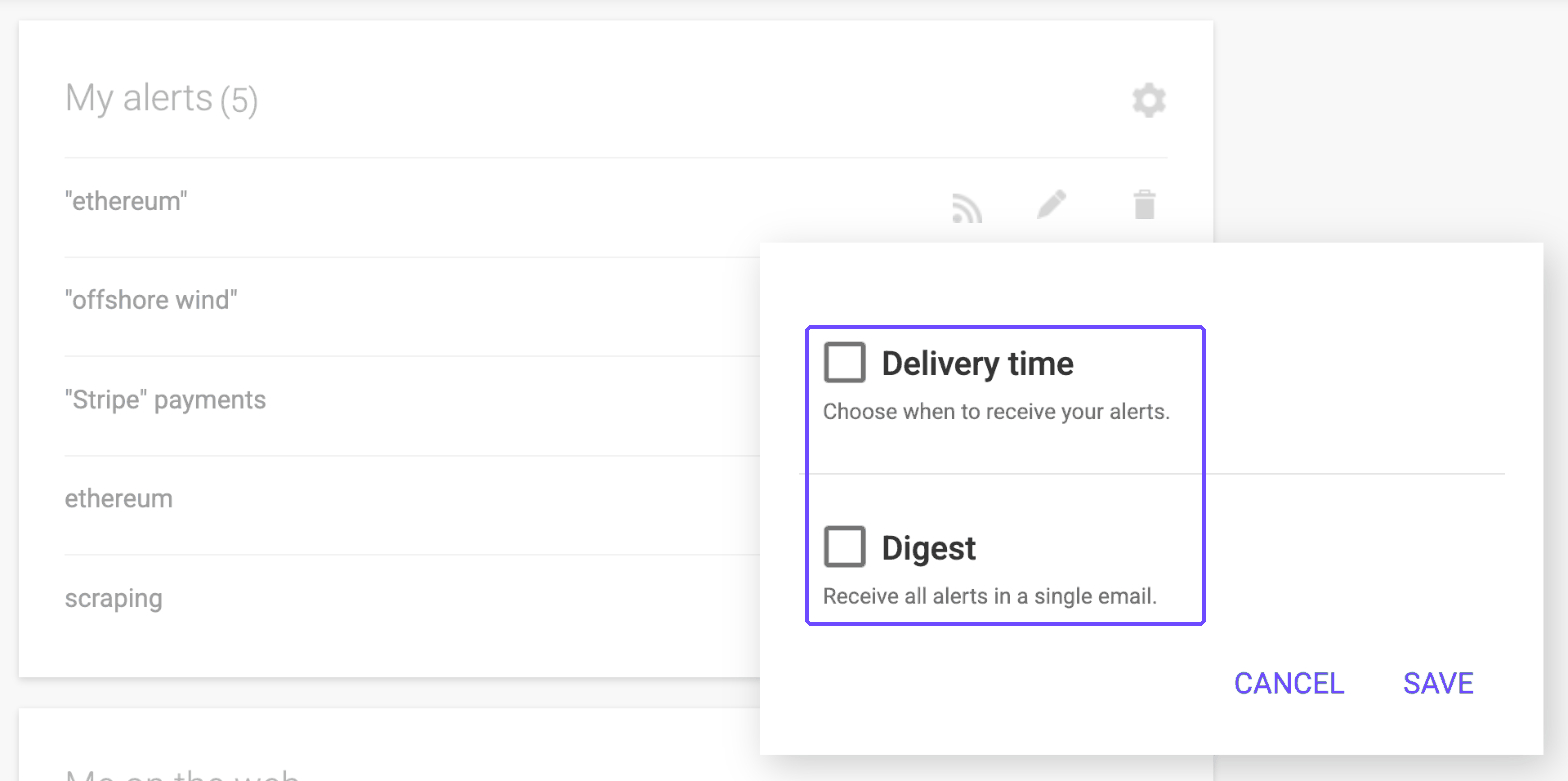
The Settings dialog on 2026-10-17. We closed it with Cancel and changed nothing.
Google's help page only says: "To change how you get alerts, click Settings." We did not turn either option on, so we cannot say how Digest groups mail or what Delivery time offers. If you have more than a few alerts, Digest is the first thing we would try.
Write queries that return what you want
We used one topic, electric vehicles, typed each variant into the create box and read the preview. We checked the headline and snippet text of every result. Counts are out of the results shown.
| Query | What the preview showed |
|---|---|
electric vehicles |
10 results. 9 contain the phrase "electric vehicle". 5 mention Tesla. |
"electric vehicles" |
10 results. 7 are the same stories as the unquoted query. |
"electric vehicles" OR "EV sales" |
10 results. 9 contain "EV sales". |
"electric vehicles" -tesla |
10 results. 0 mention Tesla. |
"electric vehicles" site:reuters.com |
9 results. All 9 are from Reuters. |
"electric vehicles" source:reuters |
10 results. 5 from Reuters, 1 from Reuters Connect, 4 from other outlets. |
"electric vehicles" inurl:reuters |
1 result. |
intitle:"electric vehicles" |
10 results. 8 have the phrase in the headline. |
allintitle:electric vehicles |
20 results. 1 has the phrase in the headline. |
Quotes barely changed this query
Quoting the two-word phrase kept 7 of the same 10 stories, so it made little difference on this topic. We would still quote names, so the intent is clear.
OR leans on the second term
With OR, 9 of 10 results contained "EV sales". The first phrase did not disappear, but it did not lead. If one term is the real target, put it in a separate alert.
Minus and site: did what they say
For the minus query we read every headline and snippet. None mentioned Tesla, against 5 of 10 without the minus. For site:reuters.com all 9 results were Reuters pages. Both worked in the preview. site: returned 9 results, not 10, so it casts a narrower net.
Operators that did less
source:reuterswas accepted but loose. Only 5 of 10 were from Reuters.inurl:reutersreturned a single result. We did not check what it matched on.intitle:worked for most results: 8 of 10 had the phrase in the headline. The other 2 had it in the snippet.allintitle:did not act as a title filter. Only 1 of 20 headlines had the phrase, with a space after the colon or without one.
We did not test filetype:, before: or after: in Alerts. We did test operators in the Google News RSS feed, see Google News RSS search operators. We did not test whether an alert behaves the same as its preview after it is saved. In an earlier test Google refused a second alert with the same words, even with different options ("This alert is already active for your account"), so change the words, not the options, when you want two views of one topic.
Cut the noise
The method is to change one thing at a time and recount. Before counting, we set a rule: a result counts as on topic if its headline or snippet contains "Phoenix Mercury", the WNBA team. The query was mercury.
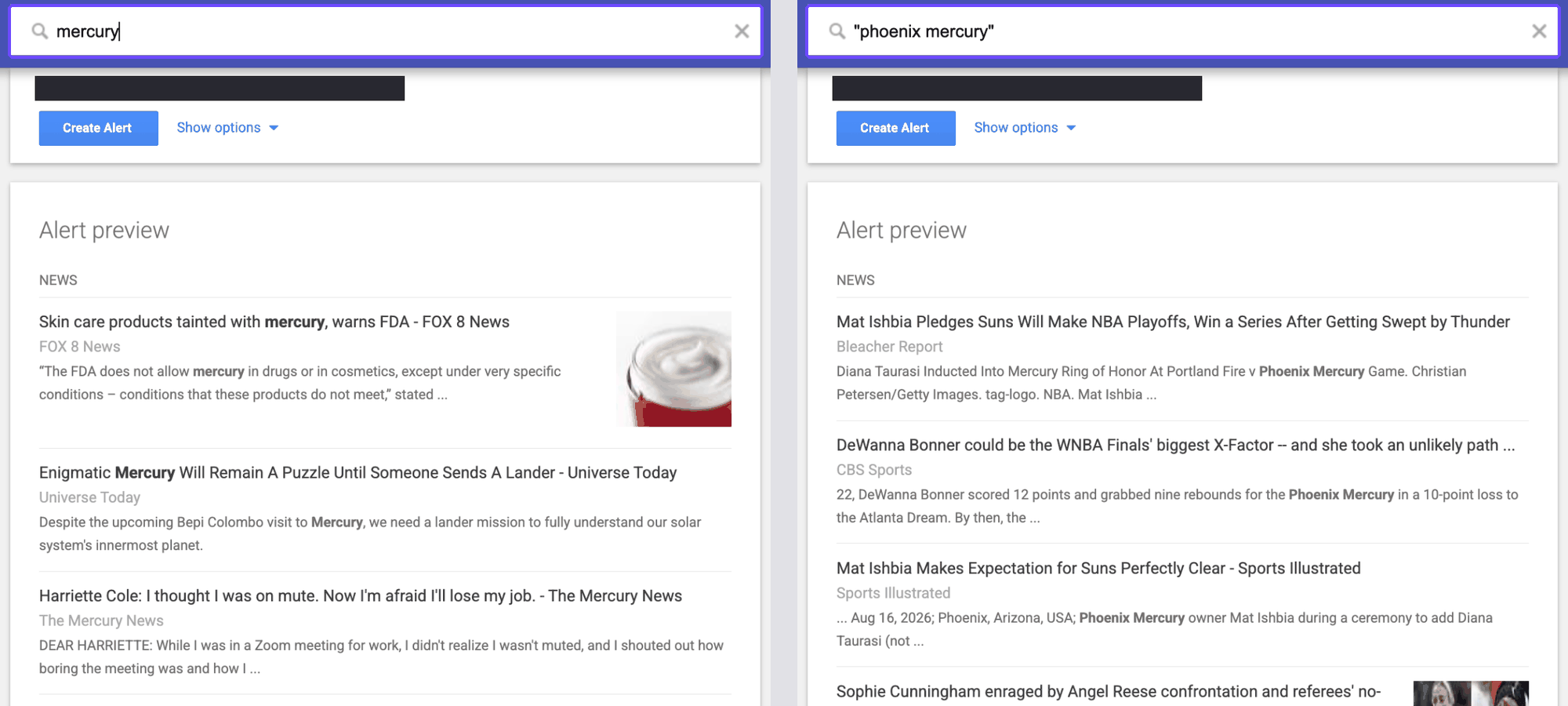
The same alert box on 2026-10-17. Left, mercury. Right, "phoenix mercury". The account line is covered.
| Query | On topic, by the rule |
|---|---|
mercury |
1 of 11 |
"mercury" |
1 of 11 |
"phoenix mercury" |
10 of 10 |
"phoenix mercury" -suns |
10 of 10 |
Quotes alone did nothing for a word with many meanings. Adding the second word fixed it. The rule is strict about text, not about the story. Several of the 10 were about other teams and only named the Mercury in passing. And -suns removed the 2 results that mentioned the Suns, but it did not raise the count, because the rule only counts the phrase.
Two limits. A word shared by many things, like a planet, an element, a band or a newspaper, makes a bad alert on its own. The fix is more words, not more settings. And the preview shows 10 results, so a count is a sample, not the volume you will get. For the same noise in a Google News RSS query, see monitoring competitors with Google News RSS.
Manage and delete alerts
My alerts lists each alert with three icons on the right: RSS, a pencil to edit and a bin to delete. The gear sits at the top of the list. Click the pencil to change the options, and the bin to remove the alert.
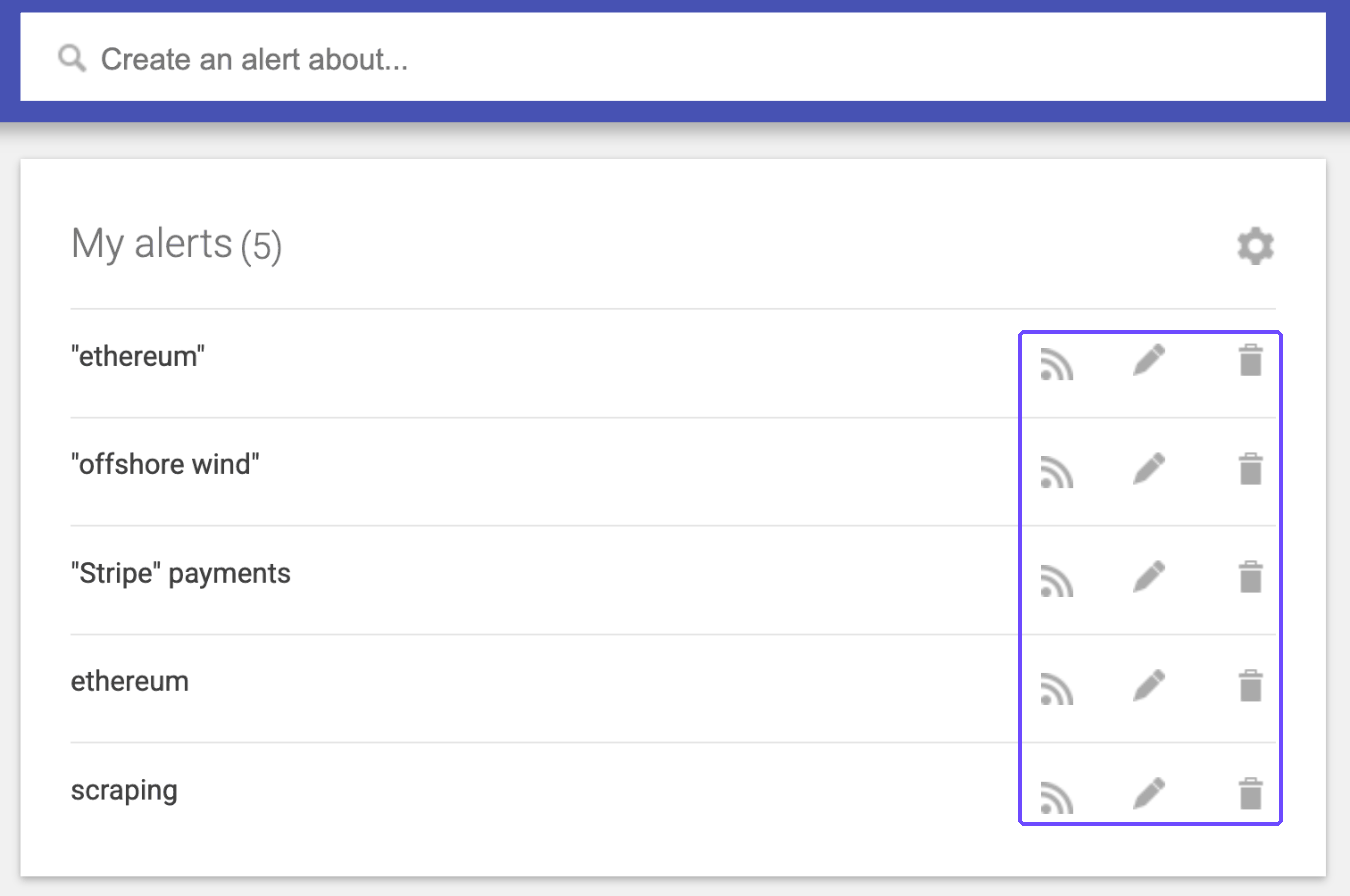
My alerts on 2026-10-17. These are our five existing alerts. We did not edit or delete any.
How many alerts can you have? We checked Google's help page ("Create an alert") on 2026-10-16 and it states no maximum. A competitor's search snippet claims 1,000 per account, but we cannot verify that without creating 1,000. We would not plan around it.
Get Alerts as a feed instead of email
Deliver to has an RSS feed option, which locks How often to As-it-happens. The steps, the feed format and the google.com/url links are in our Google Alerts RSS feed guide, and how to send Google Alerts to Slack covers posting the feed into a channel. If the email is the problem, start with what to check when Google Alerts stops sending emails. If you would rather not use an account, a Google News RSS URL is the other route. If Alerts is not the right fit at all, see Google Alerts alternatives for news monitoring.
Skip the plumbing
Google Alerts gives you a title, a snippet and a link. Feedmarkdown takes an Alert or a Google News search as a source, fetches each article and returns the full text as Markdown. It drops repeats before it scrapes anything. You get articles by HMAC-signed webhook, or pull them as JSON Feed 1.1 or Atom. See the home page and the pricing section. If you track a few topics and email is fine, Alerts alone is enough.