Google Alerts stopped sending emails. What to check
If your Google Alerts emails stopped arriving, the cause is usually on your side: the wrong Google account, an alert option that makes mail rare, or an inbox that hides it. Sometimes Google itself breaks. If email keeps failing you, you can skip it and read the alert as an RSS feed.
This is the checklist we would run, cheapest check first. We re-read Google's own help text on 2026-10-10 and quote it below. On the same day we created test alerts in a personal Gmail account, and the very first alert email went straight to spam. The screenshots are from that account on 2026-10-08 and 2026-10-10. The section near the end lists what we could not reproduce.
Check the account and whether the alert is enabled
Alerts belong to the Google account that created them. If you are signed in to a different account, My alerts shows a different list, or none.
Google's help page, under "Fix problems getting or seeing alerts", gives these steps (quoted 2026-10-10):
Step 1: Check what account you're logged onto. Go to Google Alerts. Check the Google Bar for your current account. If you're not on the correct account, click your profile image > Sign Out. Sign in with the correct account.
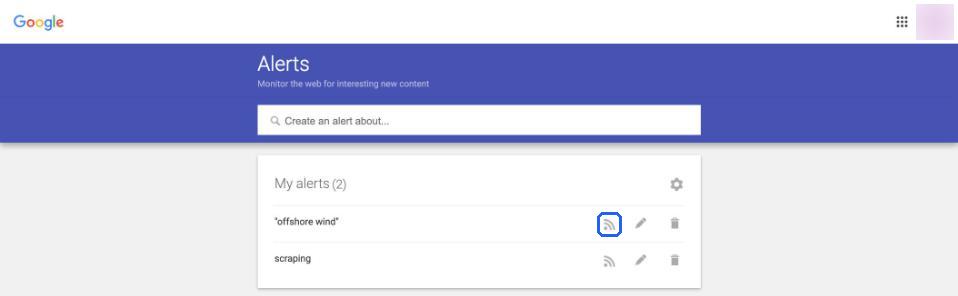
My alerts on 2026-10-08. The account picture in the top right is the "Google Bar" Google means. Ours is blurred.
Step 2 on the same page covers disabled alerts: "If you see a message that says your alerts have been disabled, click Enable." We have never seen that message, including on 2026-10-10, and Google does not say what triggers it. So we cannot show it or tell you why it appears. If it is there, click Enable and wait for the next alert.
Source: Create an alert, Google Search Help. The troubleshooting part is a section of that page, not a page of its own.
Check how often, sources and how many
Open the alert (pencil icon) and click Show options. Some settings make an alert send mail rarely, which can look like it stopped.
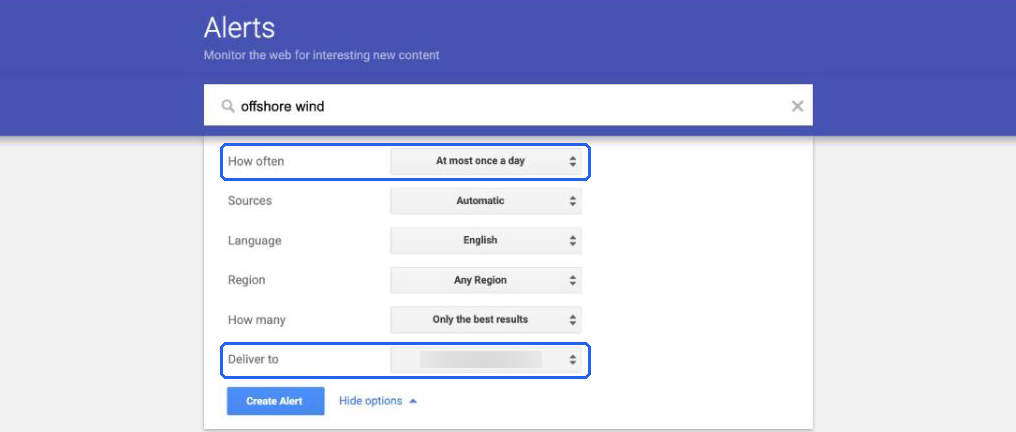
Show options on a new alert, 2026-10-08. The Deliver to address is blurred.
These were the defaults on our account, the same on 2026-10-08 and 2026-10-10:
| Setting | Default we saw | Why mail may look missing |
|---|---|---|
| How often | At most once a day | You get one digest a day at most, not one email per result. With At most once a week, expect a week of silence. |
| Sources | Automatic | Picking one source type gives the alert fewer places to find results. |
| Language, Region | English, Any Region | A narrow region or language cuts results the same way. |
| How many | Only the best results | Google filters what it sends. We do not know the rule it uses. |
How often has three choices: As-it-happens, At most once a day and At most once a week.
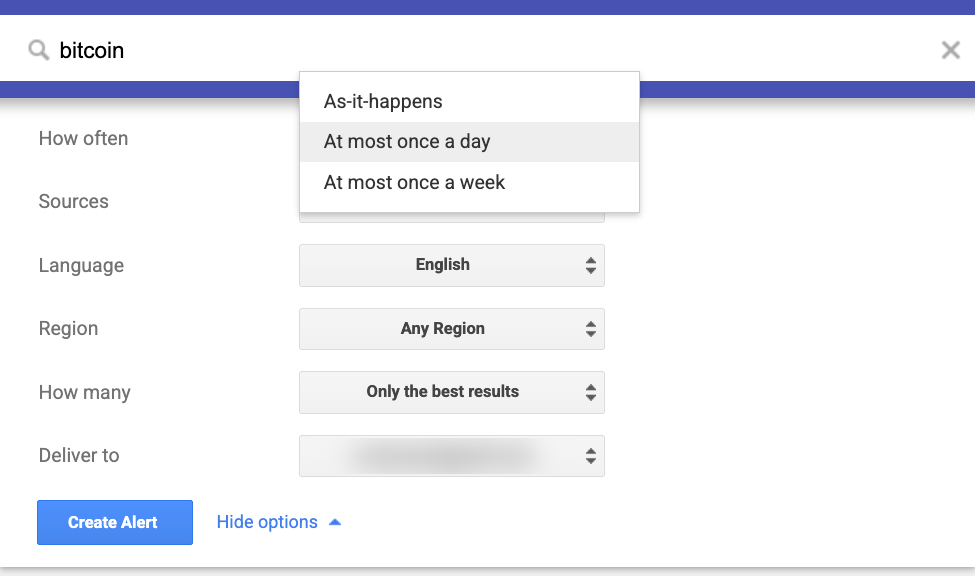
How often, 2026-10-10. The Deliver to address is blurred.
Sources offers Automatic, then News, Blogs, Web, Video, Books, Discussions and Finance. How many has two: Only the best results and All results.
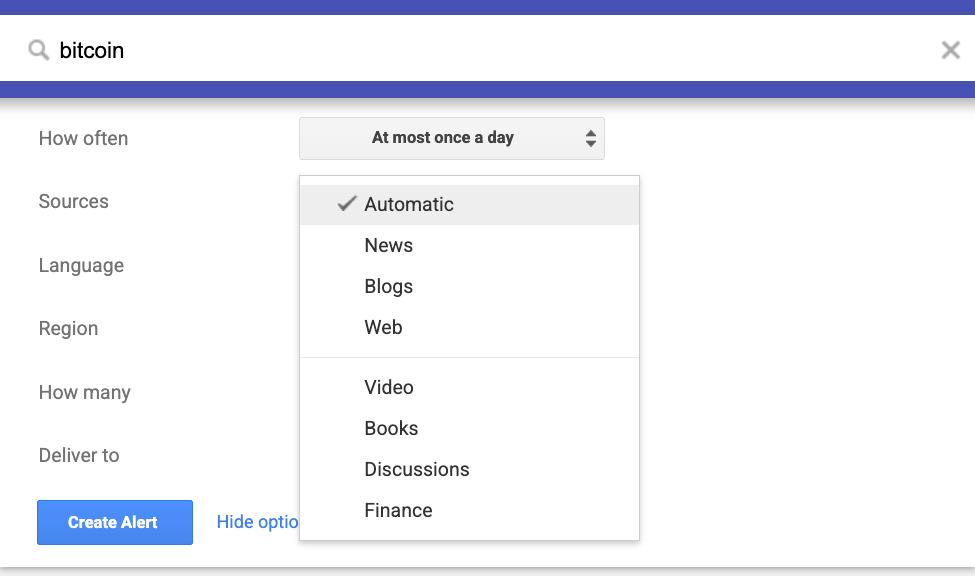
Sources, 2026-10-10.
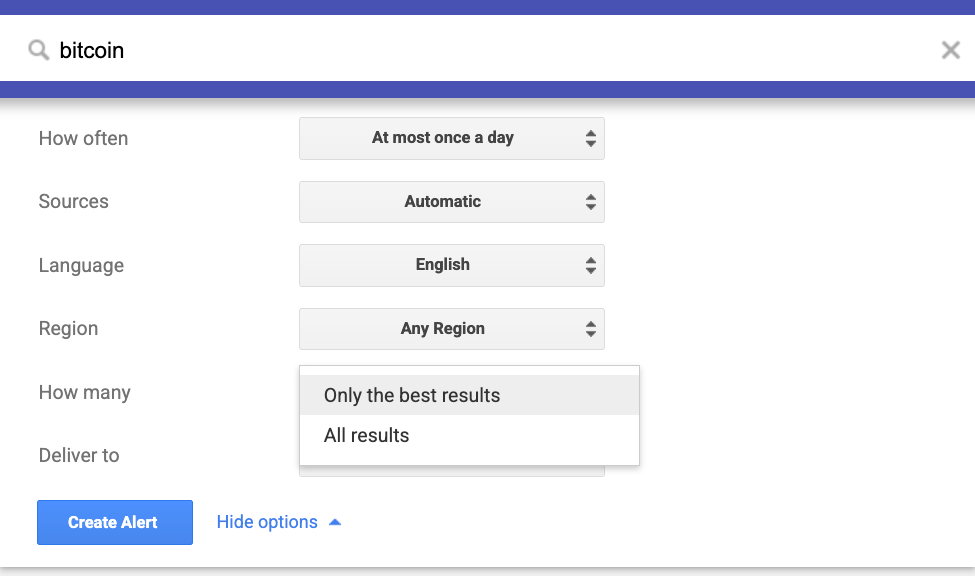
How many, 2026-10-10.
How much does Only the best results hold back? We set up two RSS alerts on 2026-10-10, ethereum with Only the best results and "ethereum" with All results. We had to use two spellings because Google refused a second alert for the same words, even with different options or different capital letters: "This alert is already active for your account". The quotes around a single word should not change the matches much, but it is not a perfectly clean test.
Right after creation, both feeds held 20 entries. The All results feed covered 4.5 hours of news (13:37 to 18:05 UTC). The best-results feed needed 9.5 hours (08:43 to 18:05 UTC) to reach the same 20. Only 8 of the 20 links appeared in both. So for this query, All results returned about twice as many items per hour. With only 8 links in common, the two settings were also picking different articles. If your alert is quiet, switching How many to All results is the cheap thing to try.
Then we polled both feeds roughly every 30 minutes, 48 times, from 2026-10-10 19:30 UTC to 2026-10-11 20:52 UTC, and counted unique entry IDs. Each request returns at most 20 entries, so we kept everything we saw across polls. The best-results feed produced 81 unique items, 61 of them new after the first snapshot. The All results feed produced 110, 90 of them new. Over the whole day All results gave about 1.35 times as many items. That's a smaller gap than the first snapshot suggested. Both feeds are capped at 20 entries, so if you read by RSS, poll often enough that new items don't scroll off the end. This is one query on one day, so treat the ratio as a rough guide.
A quiet query can also be the reason. If nothing new matches, there is nothing to send. Run the same words in Google Search with the News tab and a recent date range to see whether anything new exists.
Check the email address on the alert
The last row in Show options is Deliver to. It decides where the alert goes. Google's Step 2 ends with: "To check your email address and settings, click Show options."
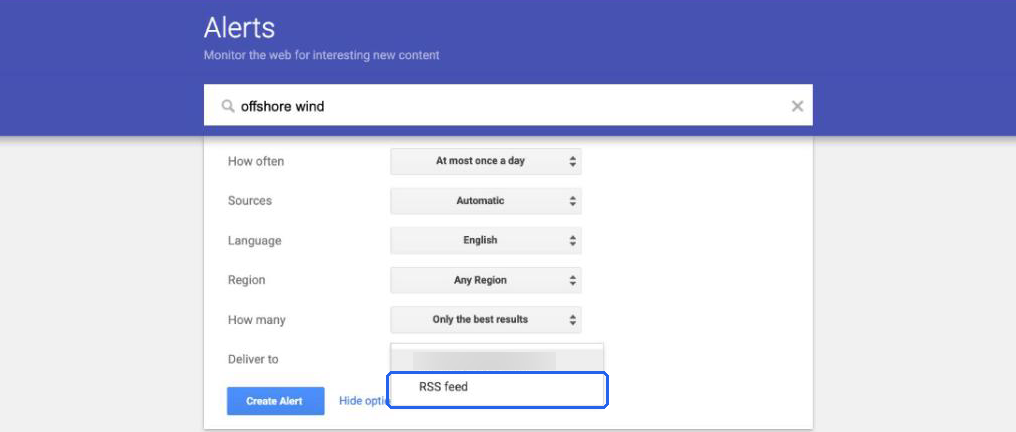
Deliver to on 2026-10-08. The first entry is the account email (blurred). The second is RSS feed.
On our account the dropdown offered two entries, the account email and RSS feed. Make sure the address is the one you read, especially if someone else set up the alert or you switched it to RSS while testing. Don't trust the list in My alerts for this: on our account every row showed the same grey RSS icon, so Show options is the only place to see where an alert goes. We have not checked whether an alert set to RSS feed still sends email. Pick the address you want and click Update Alert.
Look in spam, filters and other Gmail tabs
If the account and settings are right, Google's Step 3 points at your mailbox (quoted 2026-10-10):
Make sure your inbox isn't full. Make sure Google Alert emails aren't going to your spam folder. If you use Gmail, add googlealerts-noreply@google.com to your contacts.
So check three things:
- Inbox space. A full mailbox can reject new mail. Gmail shares storage with Drive and Photos.
- Spam. Search your spam folder for the sender address
googlealerts-noreply@google.com. If you find alerts there, mark them as not spam and add the address to your contacts, as Google says. - Filters and tabs. Google's page does not mention these. In Gmail, a filter you made long ago can archive or delete alert mail, and the Promotions or Updates tab can hold it out of sight. Search
from:googlealerts-noreply@google.comin All Mail to see where alerts land, then check Settings, Filters and Blocked Addresses for a rule that matches.
What happened on our test alert
On 2026-10-10 we created an alert for bitcoin, set to As-it-happens and delivered to a personal Gmail address. The first email arrived about a minute later. It was not in the inbox or any tab. A search for from:googlealerts-noreply@google.com showed nothing in the list, only the line "Some messages in Trash or Spam match your search." Adding in:spam found it.

The alert email in Spam, 2026-10-10.
The sender was "Google Alerts googlealerts-noreply@google.com", the address Google's help page names. Gmail's reason, shown above the message: "This message is similar to messages that were identified as spam in the past."
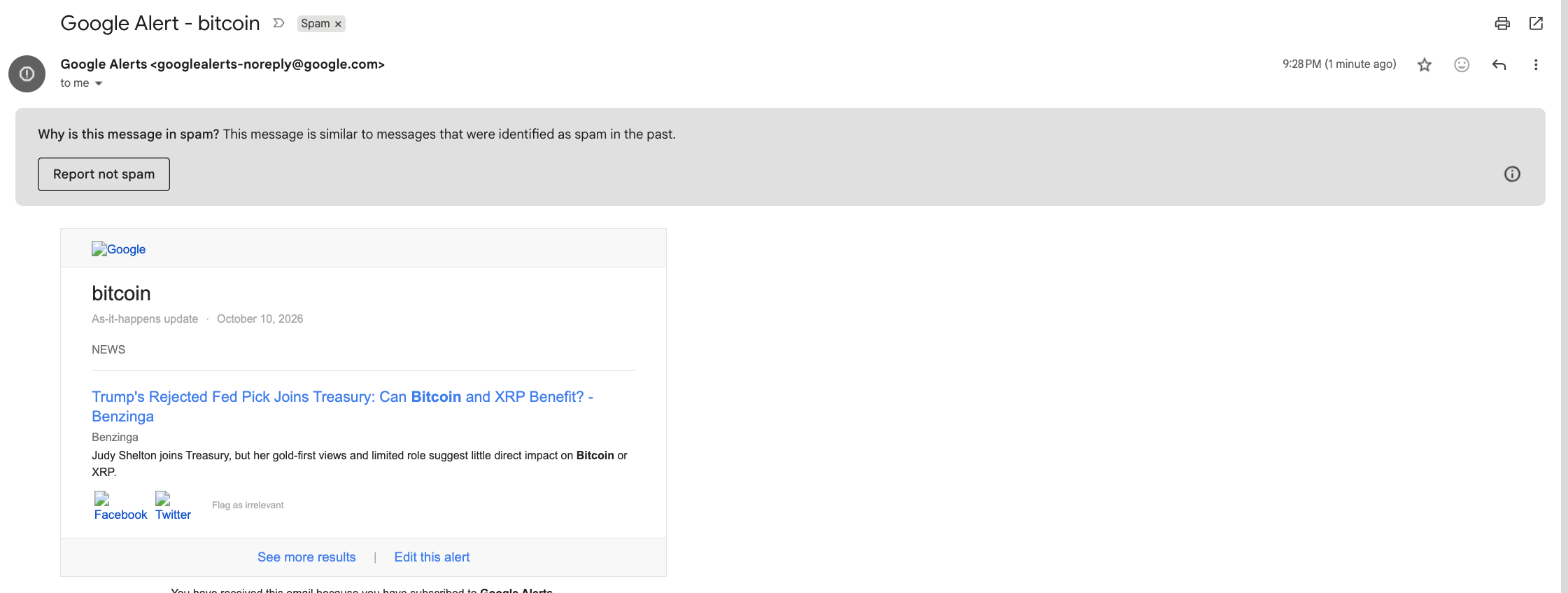
Gmail's spam banner on the alert, 2026-10-10.
This is one email on one account, and that account has years of mail and a busy spam folder, so your Gmail may treat alerts differently. Still, it was the first email of a brand-new alert, and it went to spam. That makes spam the first place we would look. Note the plain from: search: it does not list spam, so use in:spam or in:anywhere with it. Click Report not spam on one alert and add the address to your contacts, as Google suggests. We did not test whether that keeps later alerts out of spam.
Google outages
Google Alerts has broken on Google's side before. These are the ones we could find with a date:
- October 2021. Alerts stopped working for about six days for some users. Google's Danny Sullivan posted on 2021-10-19: "We've identified an issue that's prevented Google Alerts from operating properly." Search Engine Roundtable reported the fix on 2021-10-20, quoting a Google forum post: "The Google Alerts issue is now resolved."
- March 2013. Users reported far fewer Alerts emails, and Google said it was looking into it with no timeline (Search Engine Roundtable, 2013-03-08).
There is no official status page for Alerts. The Google Workspace Status Dashboard lists Gmail, but not Alerts (checked 2026-10-10). If Gmail shows an incident there, that can explain missing mail. For Alerts itself, the best signals are recent posts in the Google Search Help community and news coverage.
We searched for reports of a Google Alerts outage in 2026 on 2026-10-10 and found none. We also found no statement from Google that Alerts is being shut down.
What we could not reproduce
We never saw the "alerts disabled" message, and Google does not say what causes it.
We did not see an alert caught by a Gmail filter or sorted into the Promotions or Updates tab. Ours went to spam. The filter and tab advice is ordinary Gmail behaviour, not something we caught happening.
Some community threads describe accounts with hundreds of alerts that stop returning results. We could not read those threads in full, and Google's help page names no limit, so we make no claim about one.
Skip email and get the alert as an RSS feed
If email is the weak link, take it out. Edit the alert, set Deliver to to RSS feed, and Google gives you a feed URL for that alert. When we tested it on 2026-10-08, a curl with no cookies returned HTTP 200 and 20 entries, so a feed reader or automation tool can read it without logging in. RSS delivery also locks How often to As-it-happens.
The feed has its own quirks: it is Atom, the links go through google.com/url, and each entry is a title and a snippet, not the article. Our Google Alerts RSS feed guide has the steps, the URL format and what the entries contain, and how to send Google Alerts to Slack shows two ways to post the feed into a channel.
Where to go if Alerts keeps being unreliable
Don't let one alert email be your only way of hearing about a topic. Read Alerts as a feed and put a second source next to it. A Google News search feed is the easy one: no alert to set up, you build the URL yourself. The Google News RSS guide has the URL formats, and the "Alerts RSS or Google News RSS" section of the Alerts RSS guide compares the two. If you want to see how far a free feed setup goes for watching a brand, we ran one in media monitoring on a small budget. If you would rather replace Alerts than patch it, see Google Alerts alternatives for news monitoring.
Skip the plumbing
Feedmarkdown takes a Google Alerts RSS link or a Google News search as a source, so what reaches you no longer depends on an alert email arriving. It resolves the google.com/url wrappers, fetches each article, and returns the full text as Markdown. Repeats with the same URL or a near-identical headline are dropped before anything is scraped, and reprints under a rewritten headline are caught after. You get the articles by HMAC-signed webhook, or pull them as JSON Feed 1.1 or Atom. See the home page for how it works and the pricing section for plans.